What Is a Spectrum Router?
A Spectrum router is a wireless networking device that allows multiple devices in your home and office to connect or communicate with each other. It creates a secure Wi-Fi network, allowing you to browse the web, stream videos, play online games, and connect smart home devices without using cables. Spectrum routers come in different models from brands like Sagemcom, Askey, Sercomm, and Technicolor.
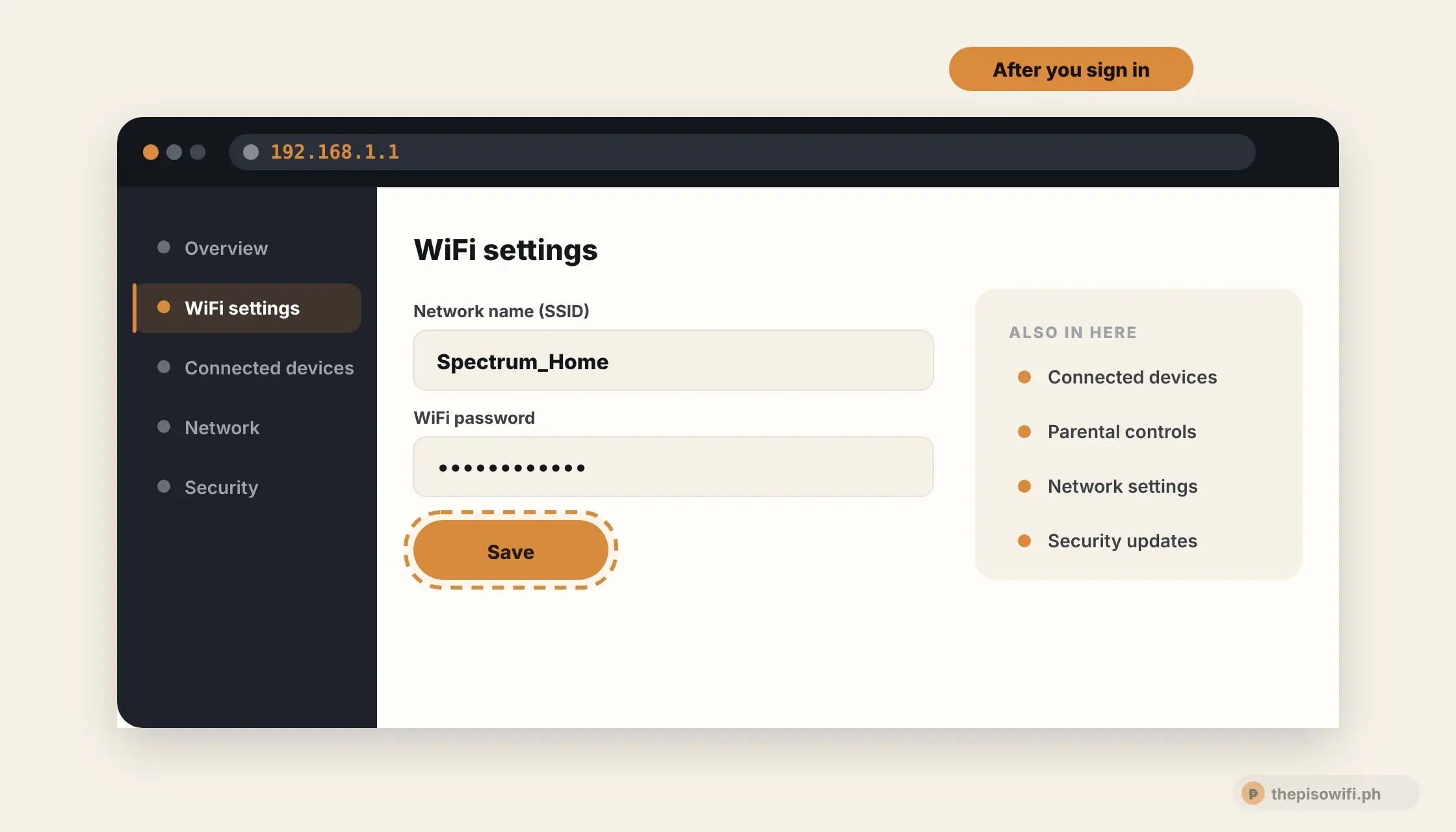
Many users prefer this router because it provides secure, fast, and affordable service and allows you to customize router settings such as changing the WiFi name, username, and password; updating security settings; managing connected devices; and configuring the network by logging into its admin panel using its default IP 192.168.1.1 and credentials.
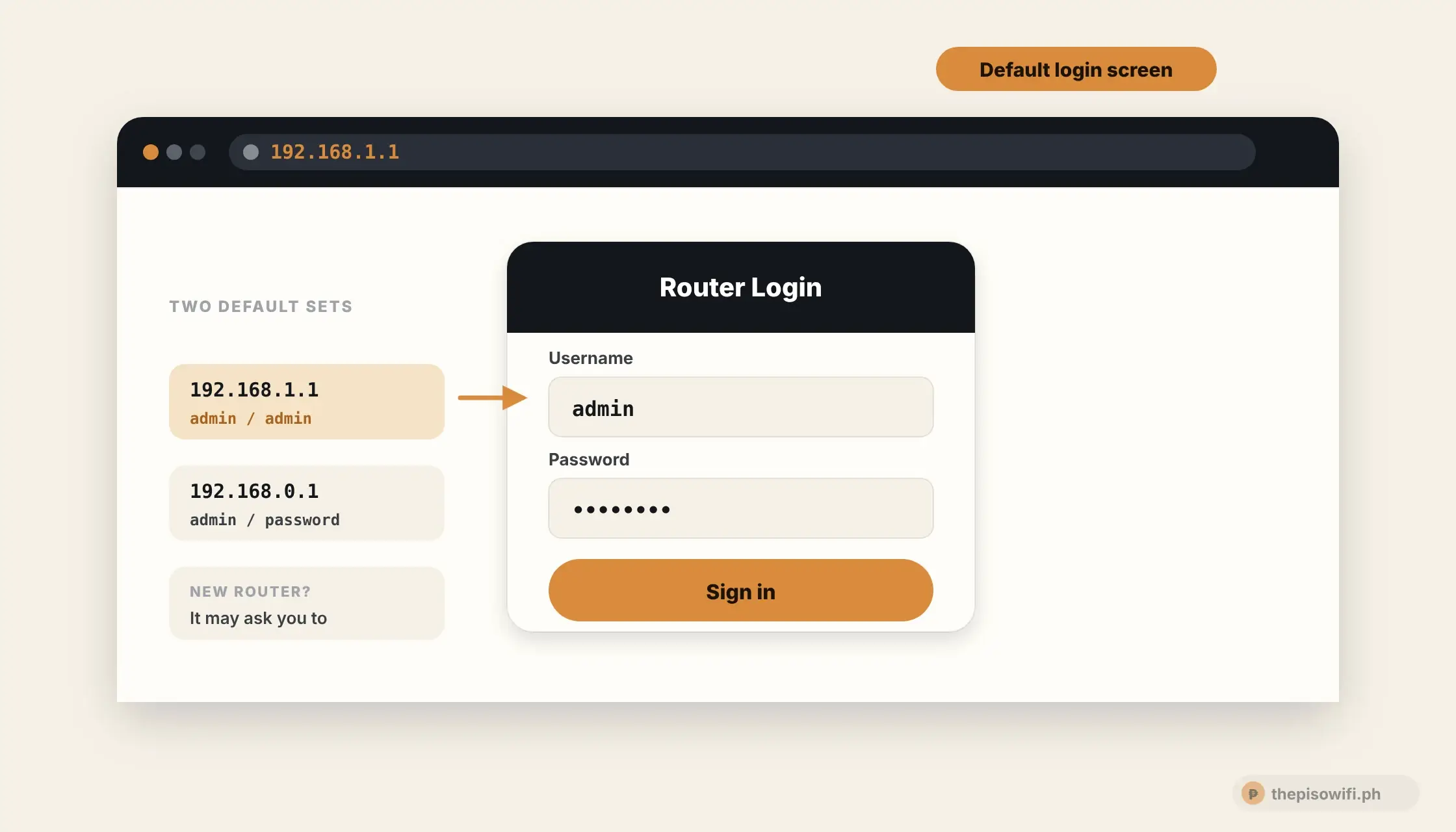
Default Spectrum Router Login Details
| Default IP | Default username | Default password |
|---|---|---|
| 192.168.1.1 | admin | admin/password |
| 192.168.0.1 | admin | password |
How to Set Up a Spectrum Router
If you recently bought a Spectrum router, follow these quick and easy steps to set up your Spectrum router.
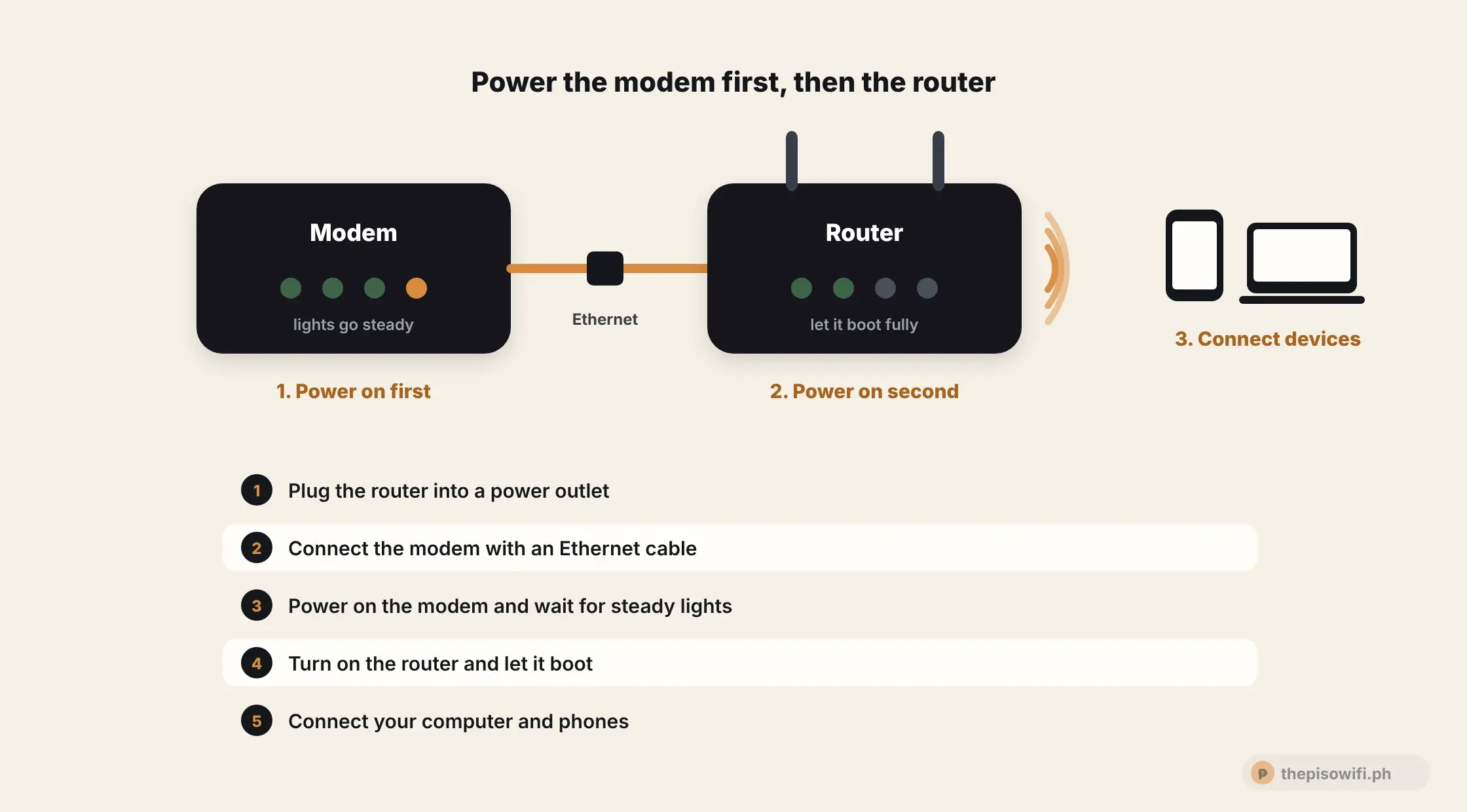
- Plug the router into a power outlet
- Connect your Spectrum modem using an Ethernet cable
- Power on the modem first and wait until all the indicator lights become stable
- Turn on the router and allow it to boot completely
- Use a computer, smartphones, and other devices to connect to the router.
How to Log In to a Spectrum Router
Logging into your Spectrum admin panel is easy and quick. Before logging in to the admin panel, ensure that your device is connected to the router's network through Wi-Fi or an Ethernet cable. Without connecting your device, you'll not be able to access the admin panel.
- Open a web browser such as Google Chrome, Edge or Safari
- Type the default IP 192.168.1.1 or 192.168.0.1 into the browser address bar
- It will land you on the login page
- Enter the default credentials: username and password
- Click on the login or sign-in button
- You'll be taken to the admin dashboard
- Now you'll be able to customize settings such as changing the WiFi name, username, and password, and configuring network settings
Popular Spectrum Router Brands
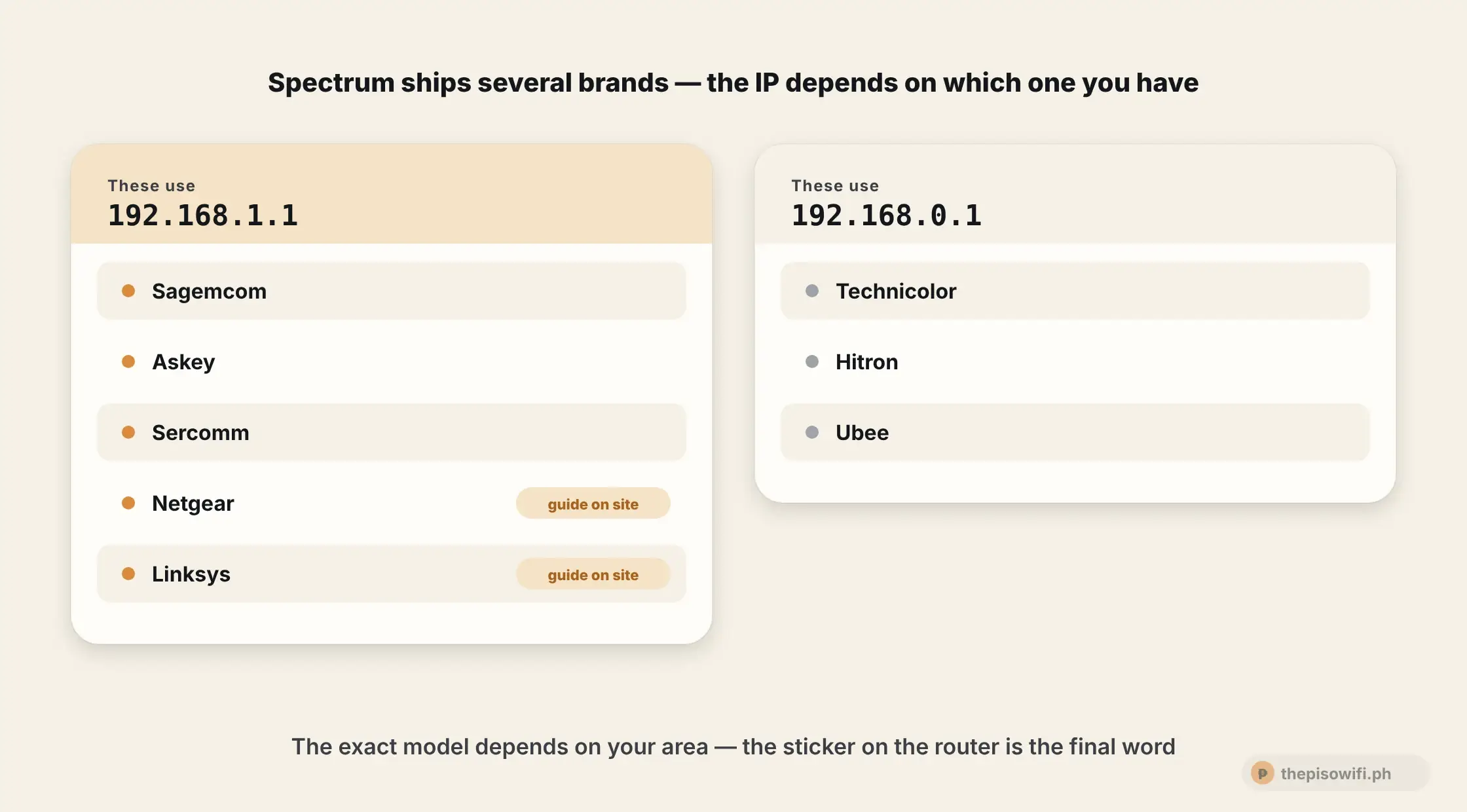
The Spectrum router is a popular networking device that comes with several advanced models with different default IPs. The exact model and its compatibility depend on your area. Some of the most common Spectrum router brands and their IPs include the following.
Popular Spectrum Router with IP Addresses
| Router brand | Default IP address |
|---|---|
| Sagemcom | 192.168.1.1 |
| Askey | 192.168.1.1 |
| Sercomm | 192.168.1.1 |
| Technicolor | 192.168.0.1 |
| Hitron | 192.168.0.1 |
| Ubee | 192.168.0.1 |
| Netgear | 192.168.1.1 |
| Linksys | 192.168.1.1 |
How to Reset a Spectrum Router
If you have forgotten your password or your router is having issues like rebooting continuously, not connecting to the internet, or not responding, the easiest and last way to solve it is to reset your router to its factory settings because it allows your router to set its settings to the original and it will erase all your router settings, even the WiFi name, username, and customized settings. To reset your router, follow these steps.
- Press and hold the reset button located on the back of the router
- Hold the button for at least 10 to 15 seconds
- Release the button when the LED lights start blinking
- Wait for a few minutes to reset your router
Troubleshooting Spectrum Router Login Issues
Can't Access the Spectrum Router Login Page
If you can't access the Spectrum router login page, make sure you enter the correct IP address, 192.168.1.1, in the address bar. Double-check your credentials before logging in; always clear your browser cache.
Incorrect Username or Password
Sometimes login credentials are not accepted. Verify that you're using default credentials, the correct username and password, or check the router for the login credentials on its back or bottom. There is a sticker with the details. If none of these work out, then the last option is to reset the router.
Router Not Connecting to the Internet
If your router is powered on but there's no internet, check that all the power cables are connected securely, or contact your ISP to verify that there is an outage or an issue with your internet connection.
Conclusion
Managing your Spectrum router is simple and takes only a few steps to set up and allows multiple devices to connect to one network. Many users prefer this router because it offers advanced features and access to its admin portal. You can customize WiFi settings, name, and password; manage devices; and configure security updates by logging into its admin panel using the default IP and credentials. If you ever run into problems, you can always reset the router to its factory settings or contact Spectrum support for additional assistance.
FAQs
How Can I Change My Wi-Fi Name and Password?
Log in to the Spectrum router admin panel and go to the wireless settings section. Update your Wi-Fi SSID and password. Always ensure you create a strong password for security, then save the changes.
How Can I Reset My Spectrum Router?
Press and hold your Spectrum router reset button for about 10-15 seconds. Release the button when the LED lights start blinking, then wait for a few minutes to set your router to its original settings.
What Is the Default Username and Password?
Most Spectrum router ISPs provide default credentials to log in to the admin panel, such as username admin and password admin; however, new routers may require you to create a custom password during setup.