What is the ZTE router login?
The ZTE router login is a process that allows users to take control of router settings. Whether you need to customize the WiFi name, username, or password, manage connected devices, configure network settings, update SSID, control parental features, or update firmware, you can easily do these settings by logging into the router admin panel using its default IP and credentials. The login process is easy and simple, and takes only a few minutes before logging in. Make sure to connect your device to the router network; it will help you to access the admin panel. The ZTE router is known for its secure and reliable internet service.
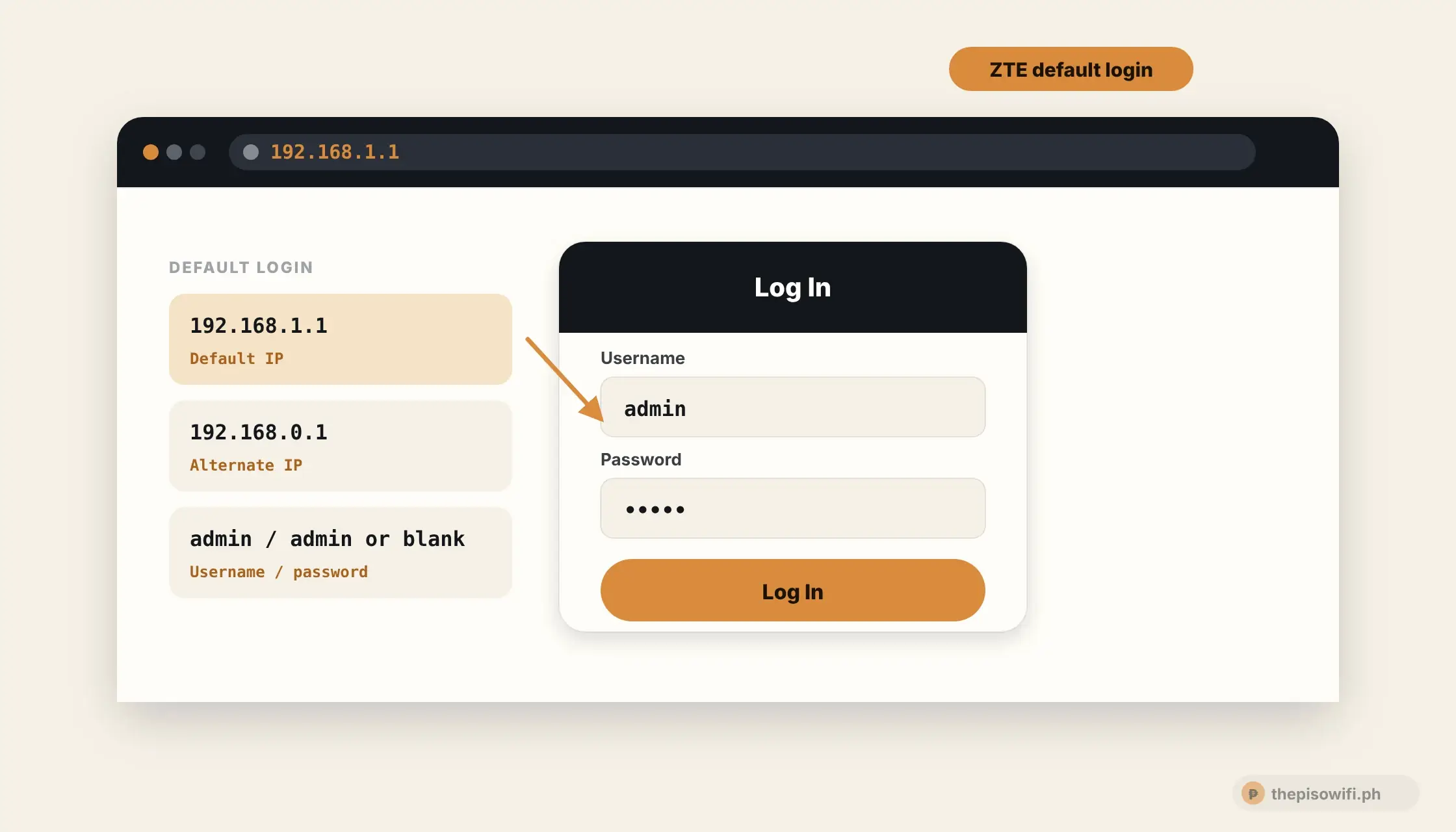
ZTE Router Default Login Information
| features | details |
|---|---|
| Default IP | 192.168.1.1 |
| Alternate IP | 192.168.0.1 |
| Default username | admin |
| Default password | admin/blank |
| Login URL | http://192.168.1.1 |
Popular ZTE Router Models
- ZTE ZXHN H108N
- ZTE ZXHN H168N
- ZTE ZXHN H267A
- ZTE ZXHN H298A
- ZTE ZXHN H3600
- ZTE ZXHN H3601P
- ZTE ZXHN H388X
- ZTE ZXHN F660
- ZTE ZXHN F660V5
- ZTE ZXHN F670L
- ZTE ZXHN F680
- ZTE MF286
- ZTE MF286D
- ZTE MF288
- ZTE MC801A (5G Router)
- ZTE MC888 (5G Router)
- ZTE T3000
- ZTE E5501
- ZTE K10
- ZTE H196A
How to Log in to Your ZTE Router
Logging in to your ZTE admin panel is easy. First, connect your device to the router via an Ethernet cable or a WiFi connection. If your device is not connected, you will not be able to access the admin panel.
- Launch any web browser such as Edge, Safari, or Google Chrome
- Enter the router's default IP 192.168.1.1 in the address bar.
- Tap on Enter, and a login page appears on your screen
- Enter your router's default credentials
- Click on login now; you'll access the router admin dashboard, where you can change or customize router or WiFi settings, change the name, update the password, or manage connected devices.
Log in using an Ethernet cable.
- Use an Ethernet cable to connect your PC or laptop directly to one of the LAN ports on your ZTE router.
- Open any web browser, such as Google Chrome
- Enter the router's default IP in the address bar
- Log in using default credentials
- After signing in successfully, you'll be taken to the ZTE router admin panel
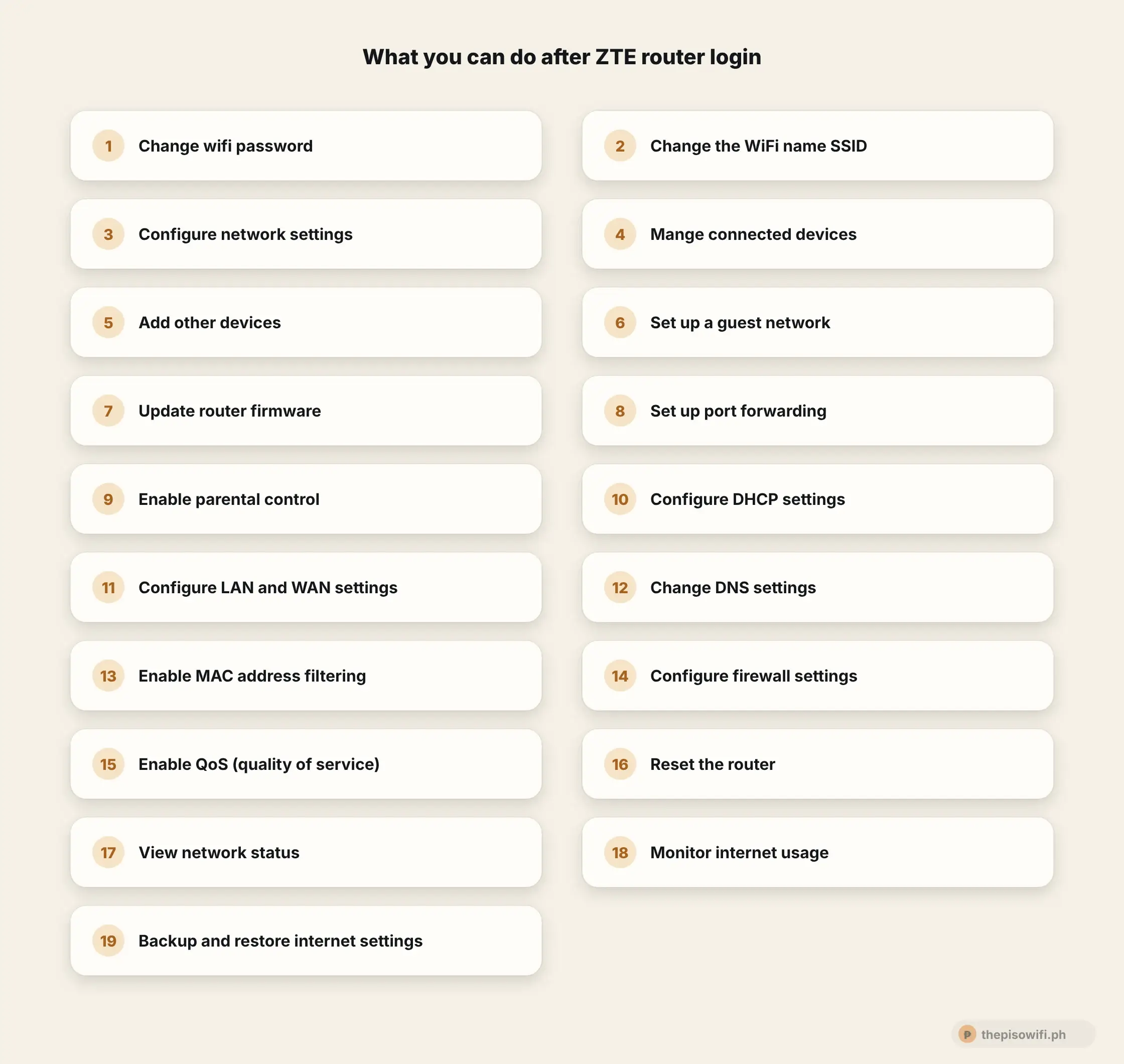
Features You Can Access After Logging Into a ZTE Router
- Change wifi password
- Change the WiFi name SSID
- Configure network settings
- Manage connected devices
- Add other devices
- Set up a guest network
- Update router firmware
- Set up port forwarding
- Enable parental control
- Configure DHCP settings
- Configure LAN and WAN settings
- Change DNS settings
- Enable MAC address filtering
- Configure firewall settings
- Enable QoS (quality of service)
- Reset the router
- View network status
- Monitor internet usage
- Backup and restore internet settings
How to Change Your ZTE WiFi Password
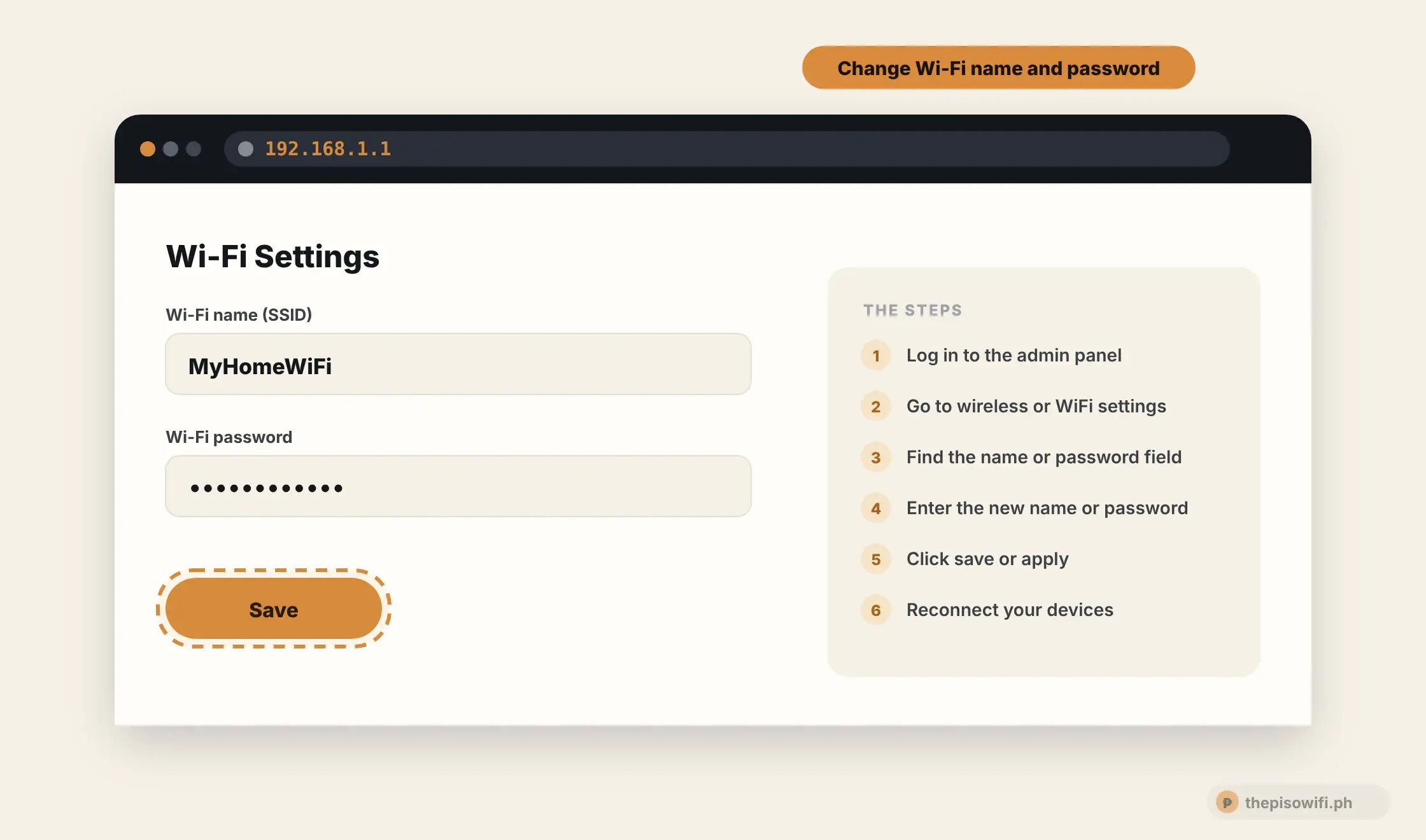
Changing your ZTE wifi password is easy and updating your password occasionally can improve security
- Log in to the router admin panel using the default IP and credentials
- In the admin dashboard, go to wireless or wifi settings
- Open the wireless security section
- Find the Wi-Fi password or WPA/WPA2 password field
- Enter your strong password using mixed numbers
- Click on save changes
- Then reconnect all your devices using the new password
How to Change Your ZTE WiFi Name (SSID)
- Log in to your admin panel using the default credentials
- In the dashboard, go to Wi-Fi settings
- Locate the SSID or wifi name field
- Enter your preferred wifi network name
- Click "save" or "apply changes"
- Reconnect all your devices if needed
How to Reset Your ZTE Router
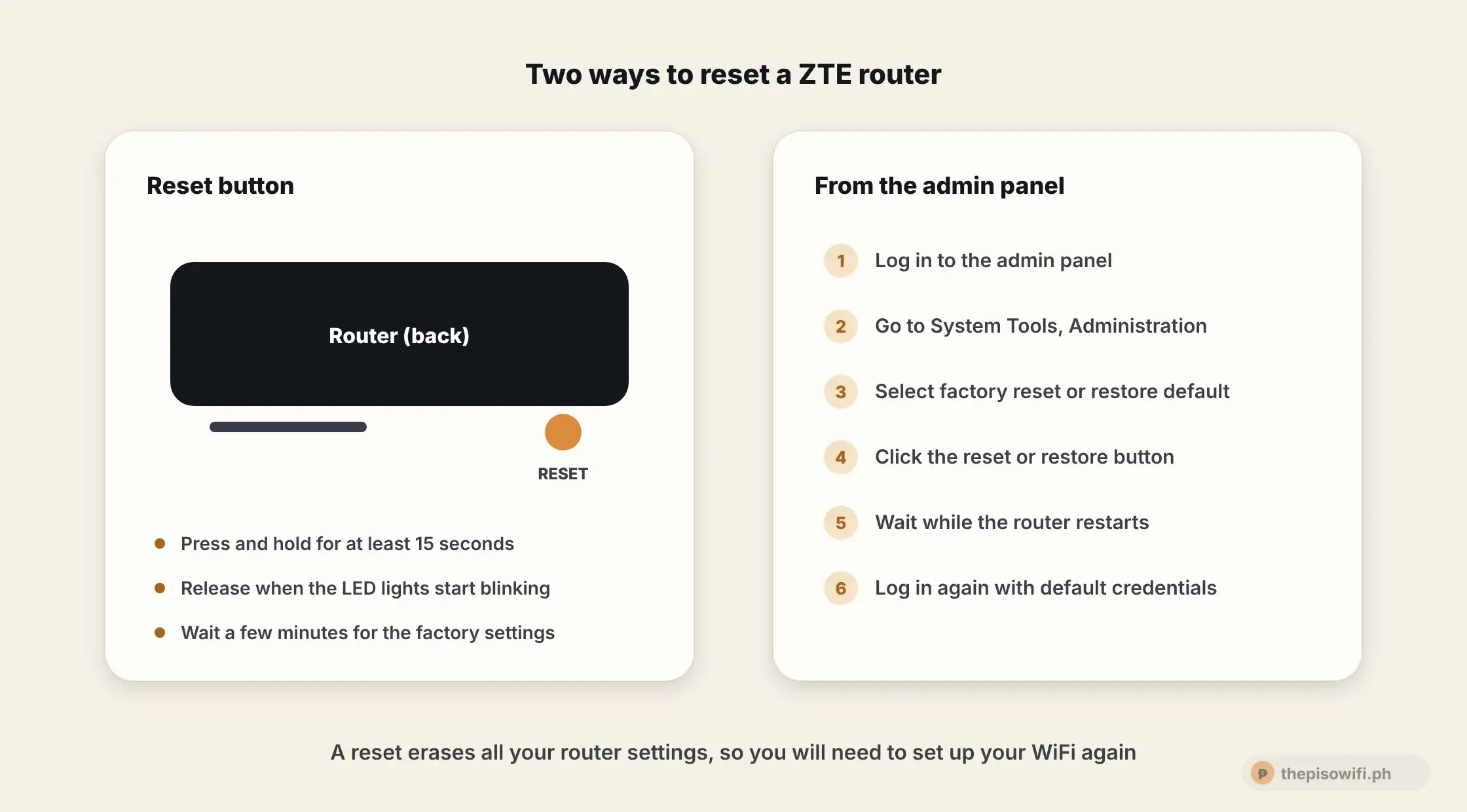
If you have forgotten your password or are facing login issues, resetting your router is the only choice left. The process is easy and simple. Press and hold the router reset button located on the bottom of the router for at least 15 seconds, then release when the LED lights start blinking, and wait for a few minutes. The router will be set to factory settings. This will erase all your customized settings.
Reset Your ZTE Router Through the Admin Panel
- Log into your ZTE router admin panel
- Go to System Tools Administration Settings
- Select factory reset or restore default settings
- Click the reset or restore button to begin the process
- Wait a few minutes while the router restarts automatically
- Once the reset is complete, log in again using the default login credentials.
How to Fix ZTE Router Login Issues
Verify the Correct Login IP Address
Make sure you enter the correct default IP address in your browser. Most ZTE routers use the 192.168.1.1 IP, or some of the models use this alternative IP, 192.168.0.1. For more instructions, check the router label.
Check Your Network Connection
Ensure that your device is connected to the router network; if your device is not connected to the router network, you will not be able to access the admin login dashboard, and always avoid mobile data while accessing the router's admin page.
Restart Your ZTE Router
Unplug your router from the power source if your router keeps rebooting or shows internet but does not provide internet signals. After restarting your router, wait for a few minutes. Once the router is fully powered on, try accessing the login page again.
Disable VPN or Proxy Services
Turn off your VPN or proxy service running on your device. These services can sometimes block access to the router's local IP and prevent you from opening the login page.
Reset Your ZTE Router if Nothing Else Works
If the router issue is still not solved, the last option is to perform a factory reset. Simply press and hold the reset button for 15 seconds, then release and wait for a few minutes.
ZTE Router Security Tips
- Change the default login password and create a strong password
- Enable WPA2 or WPA3 encryption to keep the network secure
- Update firmware occasionally to keep your router safe
- Review connected devices regularly to check and remove any devices you don't recognize
- Create a guest wifi network for guests instead of sharing your main wifi password
- Restarting your router can boost signals and help the router to run smoothly
Conclusion
ZTE router is a popular networking device that allows your home and office WiFi networks to share the same connection, whether you need to change the SSID, perform a factory reset, update the username, configure network settings, or control parental options. You can do these settings by logging in to the router admin panel using the default IP and credentials. If you recently bought a ZTE router and want to set it up, then this guide is for you. By following this guide, you'll be able to set up the router and customize its settings by yourself.
FAQs
Why Is the ZTE Router Login Page Not Opening?
Check that your default IP and credentials are correct; sometimes users enter an incorrect IP. Ensure that your device is connected to the router admin network before logging in, and clear the browser cache.
How Can I Change My ZTE WiFi Password?
You can change your Wi-Fi password by logging in to the admin panel, going to wireless settings, and then finding the password field. Enter a strong password using a mix of numbers.
Is It Safe to Reset a ZTE Router?
Yes, resetting your router is safe, but before resetting, keep in mind: factory settings can set your router settings to their original; that means you need to set up your router again.
How Often Should I Update My ZTE Router Firmware?
You should update your firmware occasionally or when ZTE launches a new version. Updated firmware helps to improve router security and maintain overall performance.